
If you want to add more advanced features to your HISE projects but you’re not ready to start writing your own code just yet, scripts created and shared by the HISE community are a great place to start. Developers regularly share useful scripts and compact project snippets that you can copy into your own work.
Developers often post code to the HISE forum when answering questions or showing how to solve specific problems. Because of this, you’ll find a mix of small fragments and full scripts. Importing a script into HISE can be as simple as a copy/paste of just the parts you need, but when you want to import an entire script it gets a little more complicated. Read on or watch the video to find out how its done.
Some developers also post code to public git repos. You can access mine on Codeberg. Christoph has also provided lots of examples in the HISE documentation, in addition to an entire repo of example projects. There’s also a snippet browser built into HISE itself (accessed from the help menu).
Licensing
Licensing is usually simple. Many community scripts are released into the public domain. Others use the GPL. If a script has restrictions, they are normally stated at the top of the file. Always check the licence so you know how you can use the code.
The Structure of a HISE Script
A HISE script has several callback sections. These include onInit, onNoteOn, onNoteOff, onController, onTimer, and onControl. Each section runs when a specific event occurs. For our convenience, HISE shows these sections as separate tabs within the script editor but they are all contained within the same script file.
This matters when copying and pasting external scripts into your project. If you paste a whole script straight into one callback, HISE will dump the entire file into that single section. The other sections will be empty and the script won’t work, you’ll see errors. To paste the script correctly you need to use the Load Script from Clipboard action, located in the context menu of the script editor. This places each part of the file into the correct callback.
How to import a script:
- Copy the full script from the forum or repository.
- In HISE, open the script processor.
- Right click inside the editor.
- Choose Load Script from Clipboard.
- HISE will populate all callbacks with the correct code.
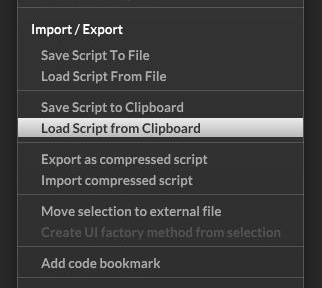
You can also copy a whole script from HISE by right clicking and choosing Save Script to Clipboard.
Snippets
Snippets are more common than full scripts on the forum. A snippet is a project snapshot. It contains scripts, modules, and UI components, but not external files such as samples or images. Snippets load like full projects, so importing one will replace your current project. However, it won’t overwrite your files unless you resave the project.
How to import a snippet:
- Copy the text of the snippet.
- In HISE, go to File.
- Choose Import HISE Snippet.
- Confirm the warning to replace the current project with the snippet.

Older snippets may show minor errors because HISE changes over time. These are usually easy to fix.
Using the Snippet Browser
HISE includes a built-in snippet browser full of examples, many contributed by the community. Open it through the Help menu and select Browse Example Snippets. The browser runs in a separate instance of HISE, which is useful if your operating system only allows one main instance at a time.
You can download or update snippets through the settings panel in the browser. Once downloaded, you can filter by category and explore UI examples and small projects that show specific techniques.
Copying Parts of a Snippet Into Your Own Project
You will often want only one idea from a snippet rather than the whole thing. In this case you must rebuild the relevant parts of the UI and module tree in your project and copy over only the necessary code from the snippet. Check every callback section so you don’t miss something important.
When you paste the code, test it. If you see errors like “component not found”, it usually means the names or number of UI elements do not match. Adjust the script or your component names until they line up. You usually don’t need advanced scripting skills to fix these small mismatches.
Pros and Cons of Using Community Scripts
Benefits
- You get extra functionality without writing it yourself.
- Most scripts are free.
- You can customise them with only basic scripting knowledge.
- They help you learn by example.
Downsides
- Snippets can overwrite your whole project if you are not careful.
- Code or snippets made in older versions of HISE may require modification to work in more recent versions.
- Scripts don’t always include usage instructions.
- Combining several external scripts can cause conflicts.
Why Learning a Little Scripting Helps
You don’t need to become a master coder. A small amount of scripting knowledge gives you a huge amount of freedom. You can fix small issues, adapt community scripts to your project, and avoid paying someone else every time you want a small change.
The basics are quick to learn and will save you time in the long run. A great place to start is the official HISE Javascript Tutorial.
Thank you for this Dave!